Look, the New Year has arrived, and people have already started creating these “New Year” themed edits. They’ve started editing by adding “2026” text, and it’s already having an impact. It’s received a very positive response from people. Let me tell you, this kind of viral editing can be created very easily. If you want to create a flashback-style edit, you’re going to love this. I’ll share the details and the editing process with you and then explain how these edits work effectively and how they will provide you with a professional result.
Details Of 2026 In But 2025 Capcut Template
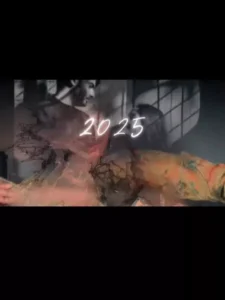
Look, at the beginning of the video, you see the text “2026,” and then a “but” is shown. It’s meant to convey that something is missing. For example, it shows that our memories from 2025 were something like this, and then you see a stardust effect. This effect makes your entire body disappear, and a flashback effect plays in the background. This effect is automatic; you don’t need to add that video clip yourself. It’s a very professional video clip, and you can find it on Instagram. Actually, not on Instagram, but within the template itself. You just need to place your video, and the template will handle the rest.
What kind of video clips will you need for this?
How many videos and what kind of video clips will you need for this? First, you’ll need video clips of people dancing, walking, or simply sitting and thinking or doing some work. You should add those kinds of videos, and importantly, you need to use landscape videos. Portrait videos won’t work here. If you use portrait videos, the result will be very poor because this template was created for landscape orientation. For those using portrait videos, the video won’t look right at all; their faces or other parts of the video will be cropped. It’s best to record the video in landscape mode and then use it. You’ll then see excellent results, just like the viral videos on Instagram.
How To Use 2026 In But 2025 Capcut Template
To use this template, simply click on “Check Template.” After clicking, CapCut will open directly for you. Here, you need to select a video. You can choose your best video from your gallery. After selecting, click on “Next.” Then, a preview of your video will be ready. Once the preview is ready, check it. If you think your video looks good, you can export it. That’s all there is to it. If you notice any issues, such as the editing not being quite right or if you accidentally selected a portrait video, go back. Then, carefully select your video clip again, check the preview, and then export it.
Conclusion
That’s how trending editing works. I’ve explained all the details to you very clearly. I’ve discussed everything thoroughly. Now it’s up to you how well you can work together to create this kind of editing, because creating this type of editing is very important. Over time, you’ll see improvements in your editing skills. Different types of people will do different types of editing, and different types of editing will go viral.