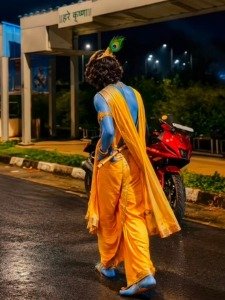
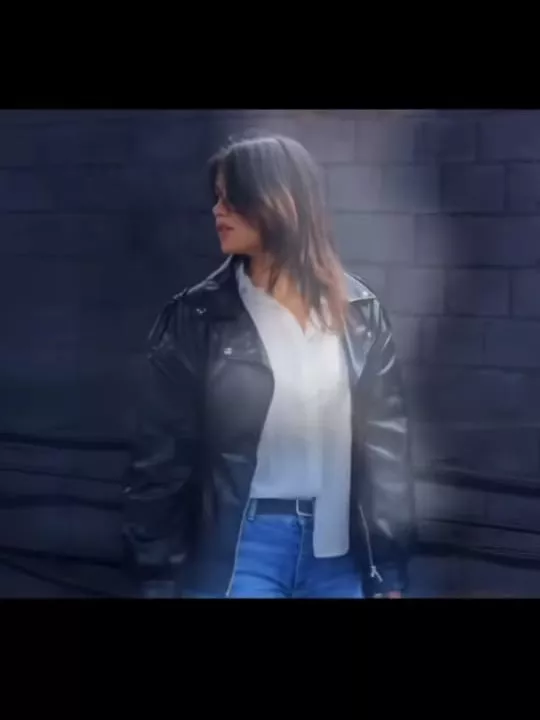
Gym Hanuman Ji Ai Video Editing – In this editing technique, we see something like this: when we do any gym workout, with its various exercises, we go there and perform the exercises, and then an image is created in the background. In the video, God appears behind us, placing his hands on our heads, as if giving us his blessings. This looks quite cool, and it’s created in two steps. Let me explain it to you properly. First, a video is created, and a screenshot is taken from that video. We then use that screenshot to create our image. This is the entire process, and we will understand it in detail in this article.
Breakdown Of This Editing
In this editing technique, we see something like this: when we do any gym workout, with its various exercises, we go there and perform the exercises, and then an image is created in the background. In the video, God appears behind us, placing his hands on our heads, as if giving us his blessings. This looks quite cool, and it’s created in two steps. Let me explain it to you properly. First, a video is created, and a screenshot is taken from that video. We then use that screenshot to create our image. This is the entire process, and we will understand it in detail in this article.
Editing Process Of Gym Hanuman Ji Ai Video Editing
First, add your video to CapCut for editing. Once you’ve added your video, set it to the music. Now, wherever you want to place your clip, you need to take a screenshot. To do this, make the video full screen at that point and then take a screenshot. Crop out any extra parts. Save this image, and then in the next step, we’ll learn how to edit it and convert it into the desired type of photo.
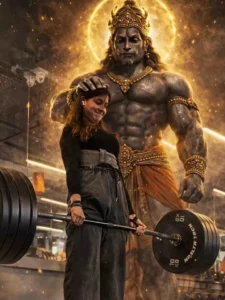
Photorealistic cinematic gym scene, Female lifter centered performing a deadlift on a wooden platform, heavy green and yellow bumper plates, muscular physique, realistic sweat and skin texture, dramatic low-key lighting with a strong top/right rim light, deep shadows and contrast, volumetric smoke/fog rising around the feet, ultra-detailed, filmic grain, shallow depth of field, 35mm cinematic lens feel, 4k photorealism. In the background: a colossal, shadowy Hanuman-like guardian spirit towering behind the lifter — enormous muscular primate deity with glowing white eyes, ornate antique gold crown, heavy gold necklaces and bracelets, intricate jewelry details, subtle smoky aura so spirit feels part of the same scene, dark desaturated palette with rich gold highlights, dramatic chiaroscuro, ultra-real textures on metal and skin, sharp detail on weights and gym equipment, cinematic mood, highly realistic, believable lighting and shadows, maintain original posture and expression from reference.
How To Create Image First?
So, what will we do first? We will upload this photo to Google Gemini. To do this, you need to open the Google Gemini application. Sign up with your email address. Then, select the “Create Image” option. In the model section, select the “Pro” model. This will give you much better results. After that, go to the plus icon and upload your photo. You can upload any photo, but in this case, you need to upload the screenshot you took. Then, paste the prompt that we have shared in this article. After pasting the prompt, if you want to change the name of the deity, you can do so. You can add the name of whichever deity you want to create the image with, adjust the details, and then simply generate the image. Wait a few seconds, and your photo will be ready.
How To Finalize Your Editing
Now, look here, you also need to learn final editing, how to finalize this type of editing. We took a screenshot. Now, you need to add that photo to the ending part of the video. Then, go to the effects section, and you’ll find a transition effect. You can select one of the effects there. Select a normal shake effect; it will simply shake your photo. Then, in the settings for that effect, you’ll find intensity and strength options. Set both of these to 10 percent. That’s it, your video will be ready. Now you can export and save it.