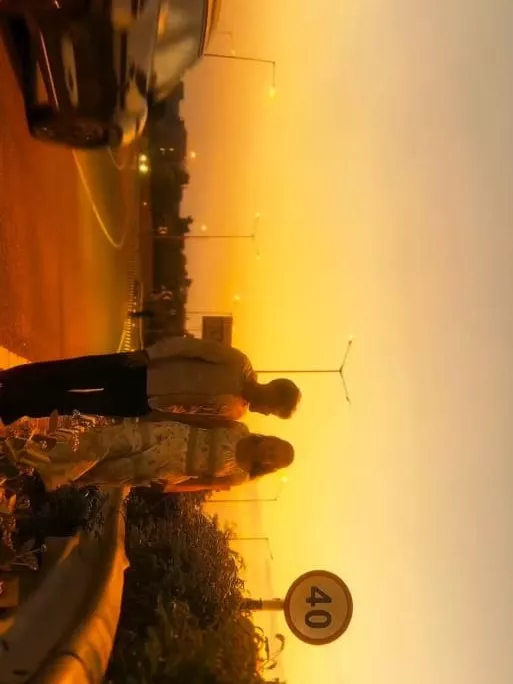
Dream Girl Ai Video Editing – Right now on social media, you will notice that “Dream Girl” style videos are going viral in a big way. These videos take footage of ordinary girls and transform it into professional, fantasy-style clips. In today’s article, we will learn exactly how you can create such videos yourself. If you wish to create these kinds of trending videos, simply follow our steps to produce a professional-quality clip—one that stands a 100% chance of going viral. In this article, I will explain the entire process to you, step by step. By following along, you can effortlessly create your own videos and achieve truly stunning results.
Full Breakdown Of Dream Girl Ai Video Editing
Now, let me explain what exactly makes this content so engaging—and why it is currently resonating so strongly with audiences. Look, there could be numerous reasons for its popularity; however, I will share my personal take on the matter and walk you through the specific details of the video format. To begin with, here is what you will observe in the video: it opens with a completely standard, ordinary clip. You need to record a segment where you are simply walking away from the camera (I will elaborate on this further in a moment). Then, as you proceed forward in the footage, the video undergoes a transformation. At that precise moment, a distinct character—resembling a “Dream Girl” archetype—suddenly appears on screen. Upon seeing this character, you will realize something fascinating: it is actually you—your very own persona—reimagined and brought to life within the video through the power of AI technology.
What kind of footage you need
A crucial point to keep in mind whenever you set out to create this type of video is to first determine exactly what kind of footage you need to record and the specific process you will follow. To begin with, observe that two prompts have been provided in the accompanying article; you must understand how to utilize each of them. You will use one prompt to generate an image and the other to generate a video. Therefore, record a video of yourself walking from the background toward the foreground—essentially, a shot filmed from behind you as you walk forward. Ensure you are wearing ordinary clothing. Now, take a screenshot of the very last frame of your video. I will now proceed to explain the subsequent steps.
How To Create Dream Girl Ai Image
Now, you need to transform the screenshot you just captured into a “Dream Girl” style image. To do this, first copy the image prompt provided here. Next, scroll down to find the “Create Image” option. Click on it—this will take you to a Google Gemini link. Once you click, you will be redirected directly to the website. Upon arriving there, click the “+” icon to upload the screenshot you took earlier. Then, paste the prompt you copied for the image creation. Finally, click “Generate,” and within a few seconds, your image will be ready. Save the generated image, and then return to our website.
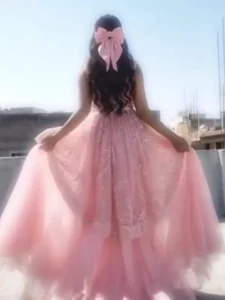
Image Prompt-
Use the uploaded black princess ball gown dress as the clothing reference.Replace the clothing of the person in the uploaded photo with the same elegant black royal princess gown.Keep the same person, same face, same body shape, same pose and same hairstyle exactly as the original photo.The dress should be a large royal ball gown with a wide flowing skirt, detailed fabric texture, soft folds and cinematic elegance.Make the clothing fit naturally to the body with realistic fabric physics.Keep the background unchanged. Ultra realistic photography style, natural lighting, cinematic look, sharp focus, high detail, 8K quality
Video Prompt-
Ultra-realistic cinematic shot of a beautiful princess wearing a long elegant black royal gown, seen from behind. The princess slowly begins walking forward in a graceful slow-motion movement. Her long black hair gently sways with the motion while the large flowing gown softly moves and drags across the ground with natural fabric physics.The princess walks like a royal queen with calm, elegant posture. Her arms move slightly and naturally while walking. The long black dress fabric waves subtly with each step, creating soft cinematic motion. The ribbon bow on the back of the dress moves slightly with the breeze.Environment: Outdoor courtyard with soft daylight, white wall and vintage door behind her. Natural lighting with soft shadows.Camera: Cinematic rear tracking shot following the princess from behind. Slow camera movement. Shallow depth of field.Motion: Natural human walking motion, slow motion elegance, realistic dress physics, hair moving gently with air. Style: Ultra-realistic cinematic look, smooth slow motion, high detail, 4K HDR, vertical 9:16, natural movement, no text, no watermark.
How To Generate Video
To generate a video, you will need to follow a specific process, and I will walk you through it. First, I have provided a prompt for the video right here; simply copy the one you prefer. Next, click on the “Create Video” button located below. You will be redirected to the Grok website, where you must select the “Video” option. You will see two choices—Photo and Video—and once you select the latter, you will be presented with an option to upload your own photo. Upload your image, paste the prompt you copied earlier, and hit “Generate.” In just a few seconds, the tool will produce a fully professional video for you. Save the video, and I will explain the steps for final editing in the section that follows.
Conclusion
For the final edit, simply import both of your clips into any video editing application: first, add the original clip from which you captured the screenshot, and then add the video you generated in the second step. Just combine them seamlessly using a smooth transition, and your video will be ready with a completely professional finish. If you prefer not to add a transition, that is perfectly fine; you can proceed without one, especially if there are no visual changes occurring between your clips.